Put both sides of an ID card into one PDF
Asked for both sides of your ID card in one PDF? Take a photo of each side, then follow the 7 steps below, right on your phone. Each photo goes on its own page, so the PDF has 2 pages: front, then back.
Updated
In short: Photograph the front and back, open the JPG to PDF page, pick both photos, put the front first, choose A4 if asked, then press “Create PDF” and download. It’s free when each photo is up to 20 MB.
Opened this from a chat app? Open it in Chrome or Safari so photos pick and files download reliably (how).
Steps
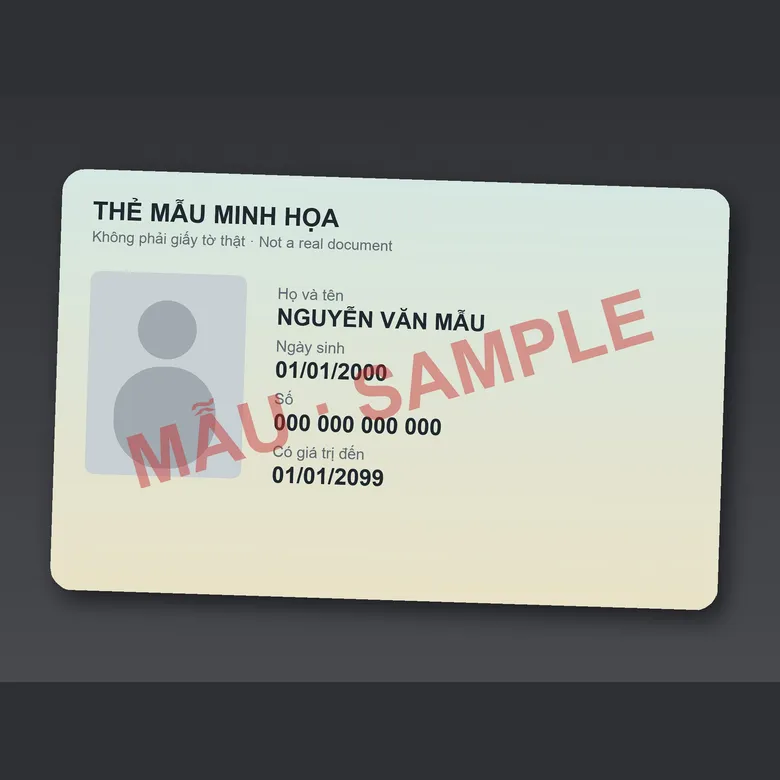
Step 1. Photograph the front
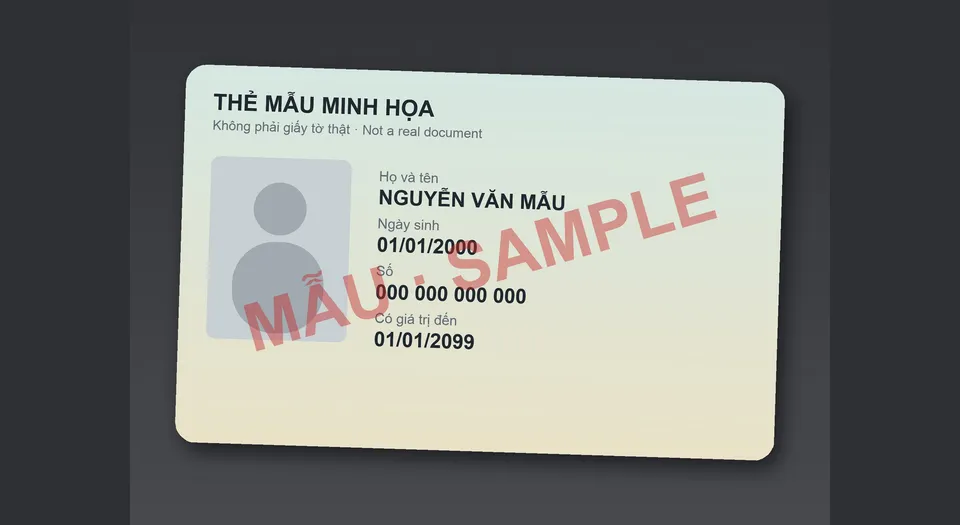
Lay the card on a dark table in good light and shoot straight down so it isn’t skewed. Avoid a lamp shining right on it, which causes glare on the text.
Step 2. Photograph the back
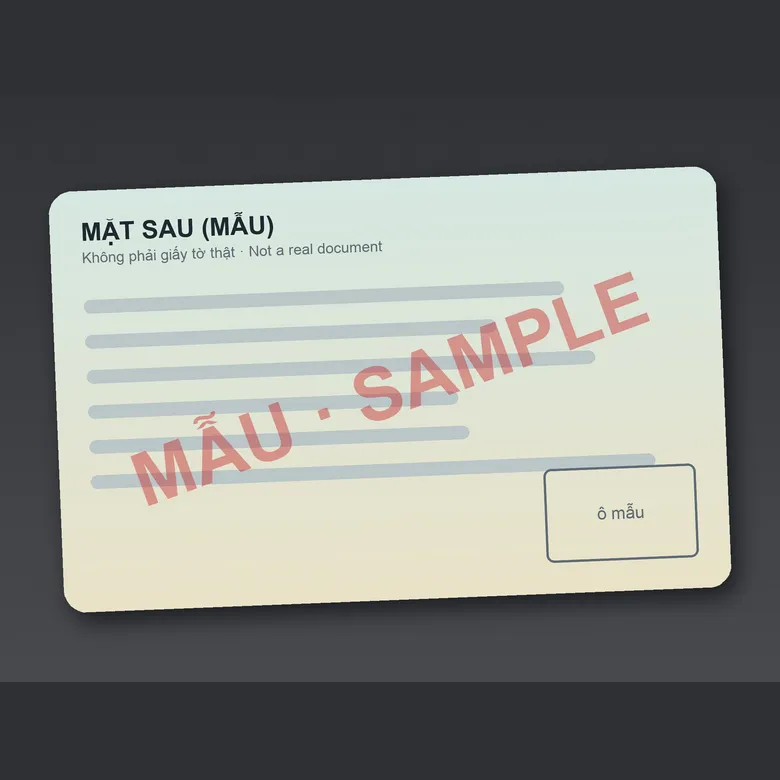
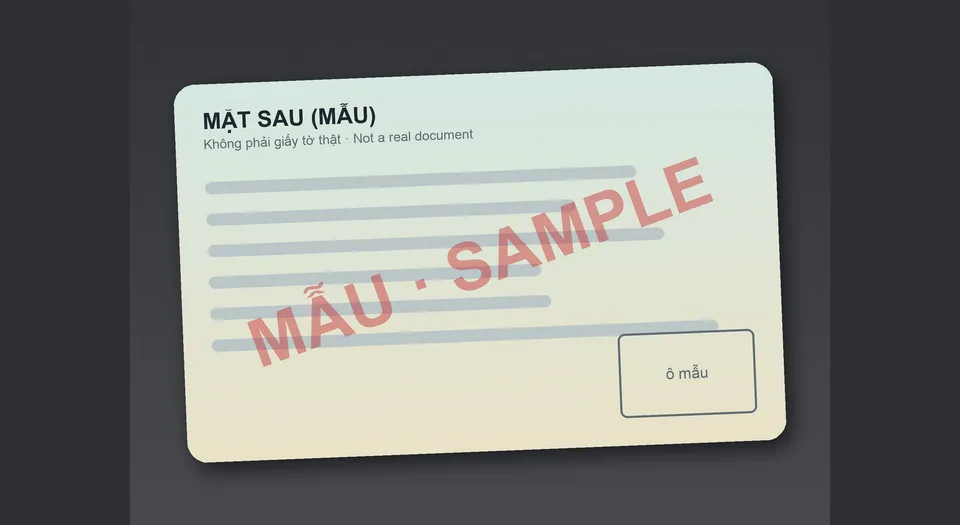
Turn the card over and shoot the back the same way. For a bigger card on the page, crop the photo close to the card edges with your phone’s photo editor.
Step 3. Open the JPG to PDF page
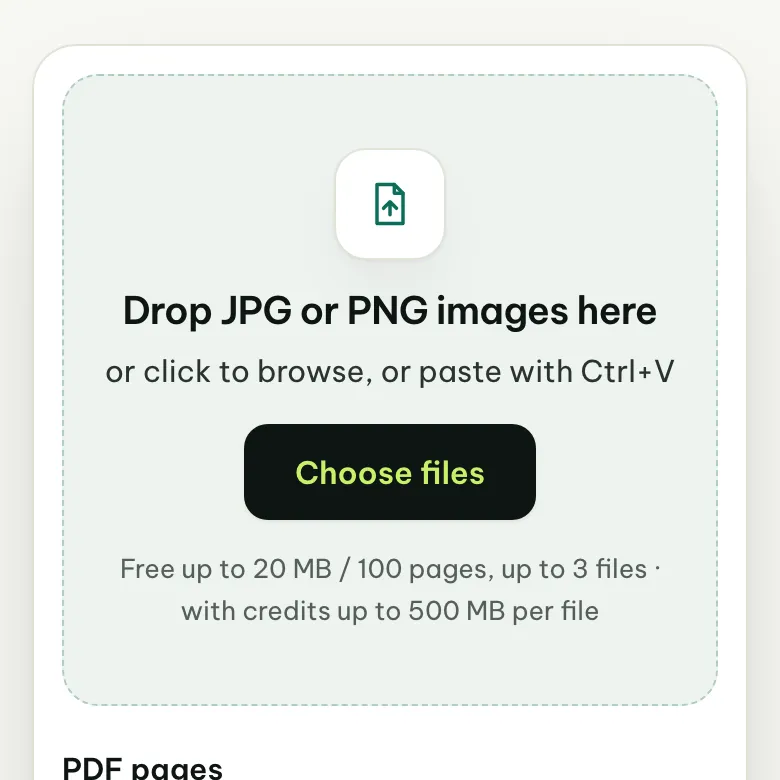
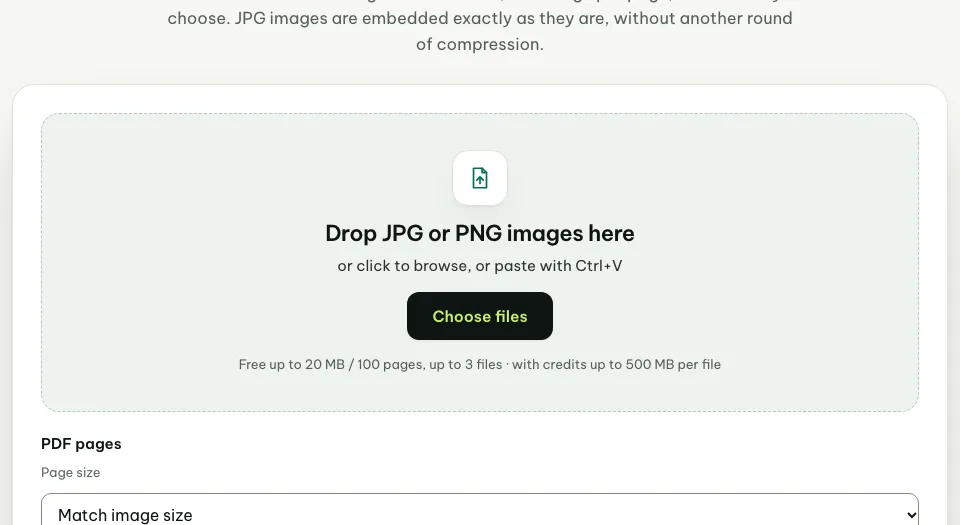
Press “Create PDF now” at the top of this page, or go to pinchpdf.com/jpg-to-pdf. Nothing to install, no sign-up.
Step 4. Pick both photos
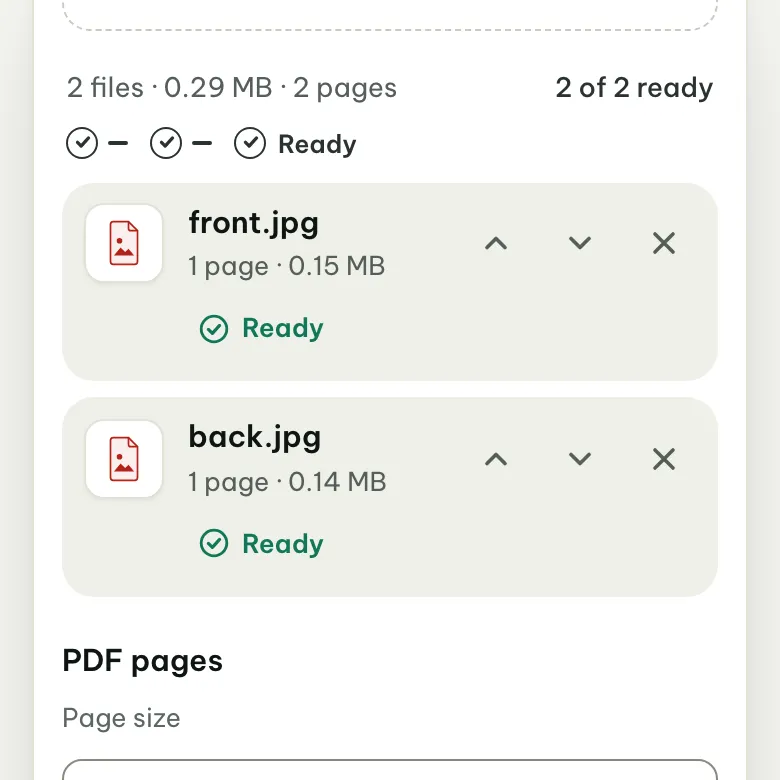
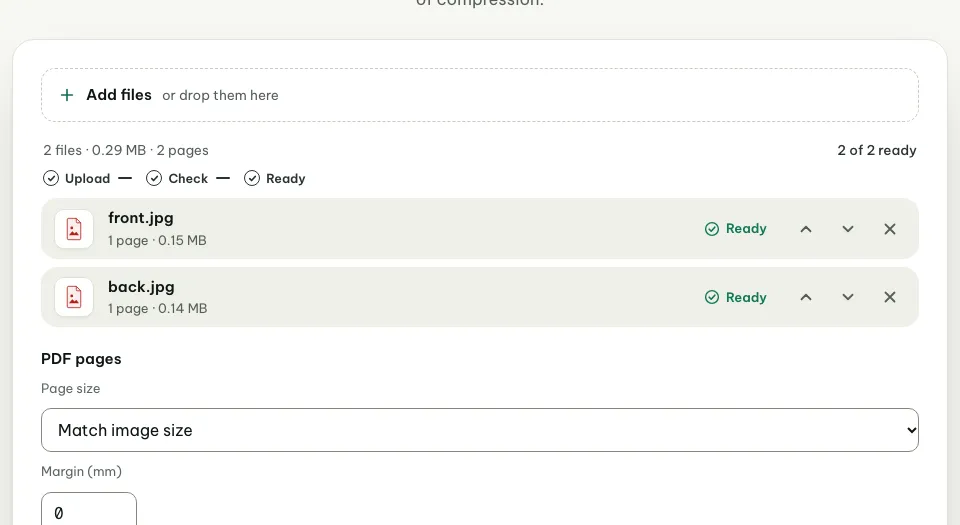
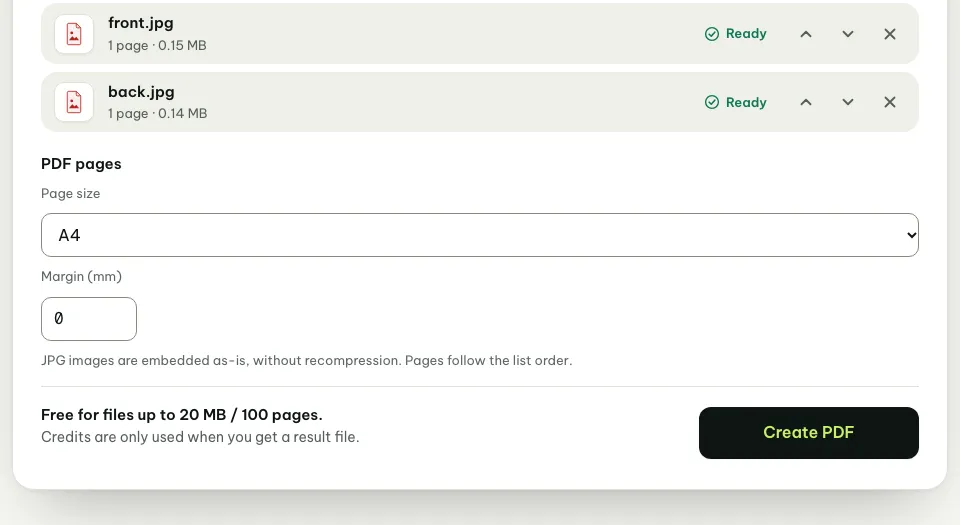
Press “Choose files” and pick the front and back photos. Each one shows “Ready” once it has been checked. On iPhone, choose Photo Library to see the photos you just took.
Step 5. Put the front first
The first image in the list becomes page 1 of the PDF. If the back is on top, press ↑ next to the front photo.
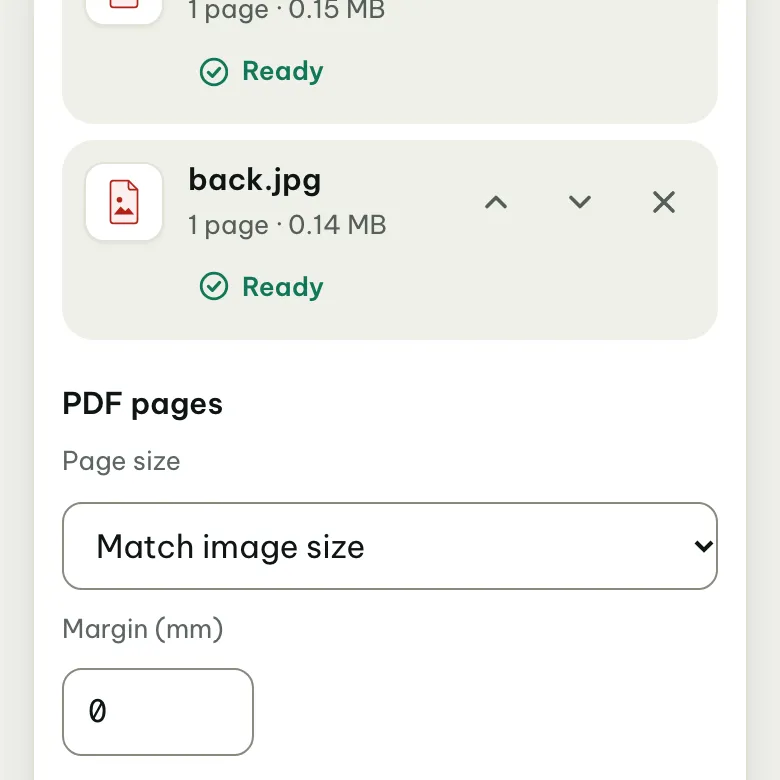
Step 6. Choose A4 if the recipient asks for it
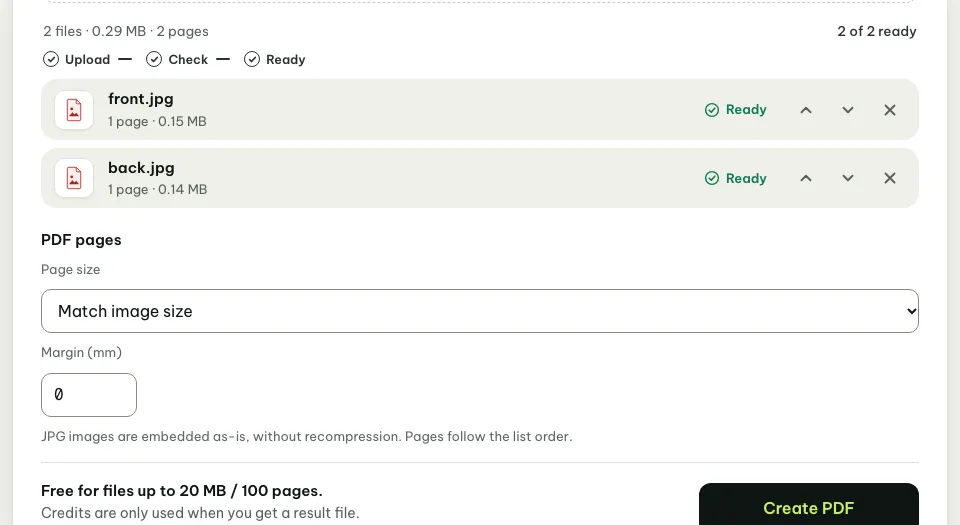
Under “Page size”, choose A4; if nobody asked, keep “Match image size”. Each photo goes on its own page.
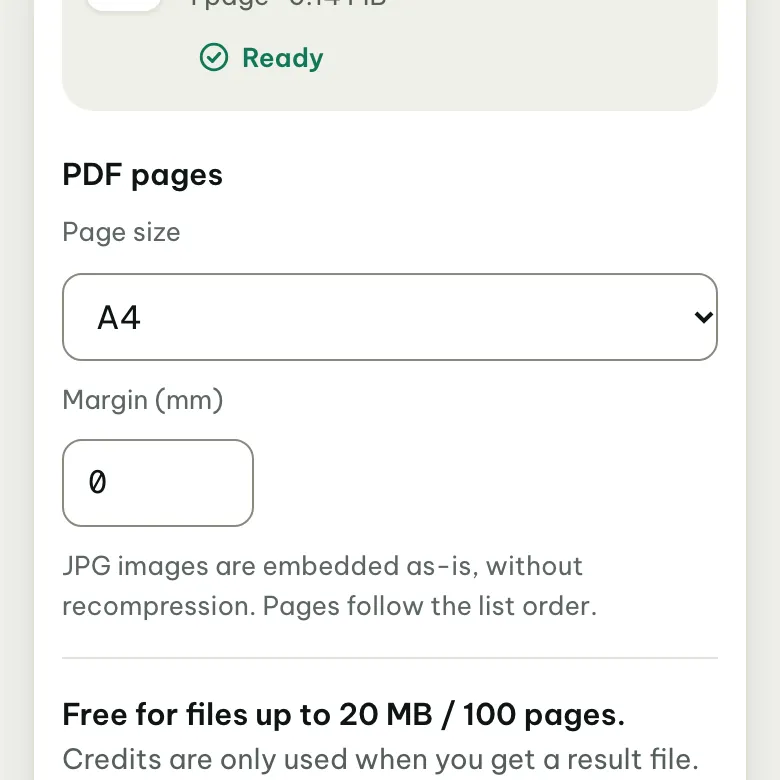
Step 7. Press “Create PDF” and download
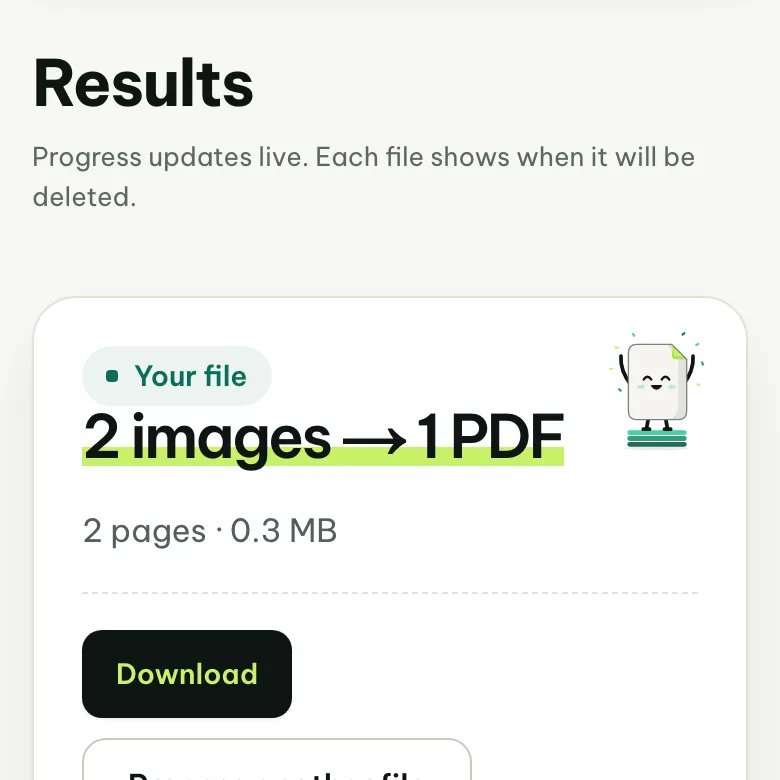
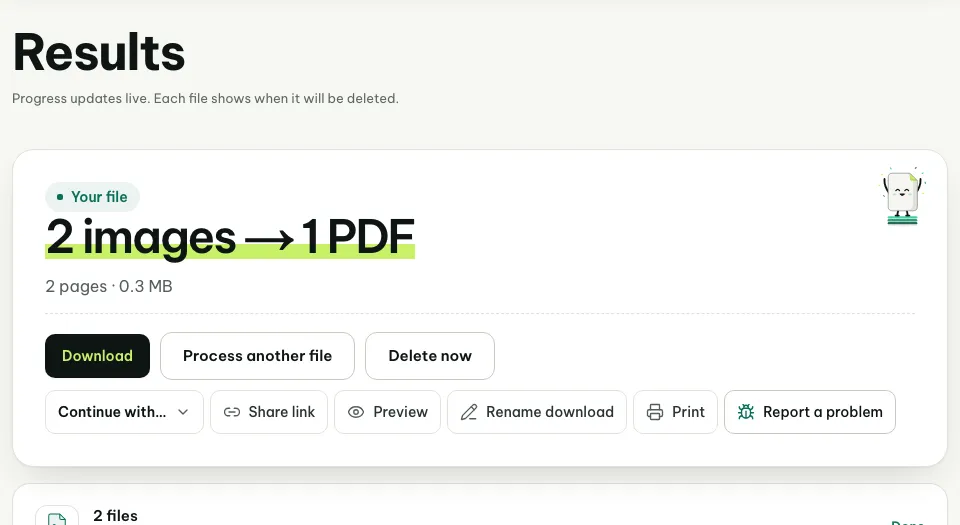
Press “Create PDF”, then on the results page press “Download” to save the 2-page PDF.
- Computer: your Downloads folder.
- iPhone: the Files app, Downloads.
- Android: the Files app, Download folder.
Can both sides go on the same page?
Not at the moment. The tool puts each photo on its own page, so the file has 2 pages: page 1 is the front, page 2 the back.
If the recipient specifically wants both sides on one page, ask whether a 2-page file is acceptable. If one page is a must, photocopy both sides of the card onto one sheet, then photograph or scan that sheet.
Which page size should I choose for an ID card?
“Match image size” makes each page fit the photo, which is easy to view on a phone or computer. Choose A4 when the recipient will print the file or asks for A4.
A landscape photo gets a landscape A4 page, so the card isn’t shrunk. The “Margin (mm)” box adds white space around the photo if you want some.
What if the PDF is too big?
Phone photos are often a few MB each, and JPG photos go into the PDF as they are, without recompression, so the PDF weighs about as much as both photos.
If an upload page allows only 500 KB or 1 MB, compress the PDF with compress PDF to 500 KB or compress PDF to 1 MB, then check the preview to make sure the card text is still readable.
Having trouble?
The recipient wants both sides on one page
The tool doesn’t place two photos on the same page. Ask the recipient whether a 2-page file is fine, since each photo gets its own page. If one page is a must, photocopy both sides onto one sheet and photograph that sheet.
The file is over the recipient’s size limit
Compress the PDF with compress PDF to 500 KB or compress PDF to 1 MB, and check the preview before you download.
A photo is sideways or upside down in the PDF
Open the PDF in Organize PDF pages to rotate the page the right way, then download it again.
I can’t pick my photo
The tool takes JPG and PNG. Photos in other formats, such as HEIC from some iPhones, need to be saved or shared as JPG first.
Opened from a chat app and can’t pick photos or download
Open the page again in Chrome or Safari and start over (how).
Frequently asked questions
Is it free to put both sides of an ID card in one PDF?
Yes, when each photo is up to 20 MB, which phone photos almost always are. If you then need to compress the PDF, that is a separate step that uses credits, shown before it runs.
Does converting to PDF blur the ID card photo?
No. JPG photos go into the PDF as they are, without recompression, so the card text is as sharp as in your photo. If the photo is blurry, take it again in better light and hold the phone steady.
Can I do this on my phone?
Yes. The whole process runs in your phone’s browser: photograph both sides, pick the photos from your gallery, create the PDF and download it. If you opened the link in a chat app, open it in Chrome or Safari.
Got both photos?
Open JPG to PDF, pick the two photos and put the front first.